
Appearance
Print
Button|Print
With this button information is sent to the printer installed. First you see a print example. In the print example there are the following buttons.
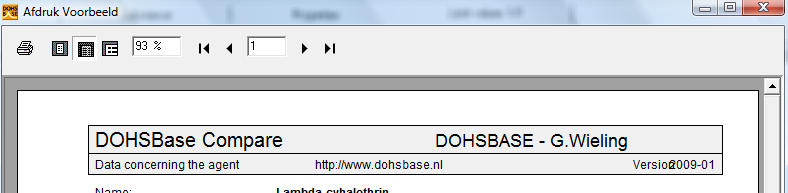
Print: starts the standard Windows dialogscreen. The default possibilities are available. Next to sending information to a printer you can also print to a file. A large amount of file types is available in this option.
Zoom in / Zoom out: Full page, Page width, 100% and manual %.
Arrows: to scroll through the. pages
At the bottom of the print example there are two buttons.

Print: similar to the button in the top of the print example. It starts the standard Windows dialogscreen. The default possibilities are available, including print to a file.
Close: closes the print example.
What information is printed?
Depending on where you are in DOHSBase Compare the information printed is different.
In the Search & Find Mode:
- Tab Search: printing is not possible (the button Print remains inactive)
- Tab Substance: information in the tabs Substance and Properties
- Tab Properties: information in the tabs Substance and Properties
- Tab Limit Values: information in the tabs Substances, Properties, Limit Values (only the selected OEL) and Sampling Methods (only the associated Sampling Methods with the selected OEL)
- Tab Sampling Methods: information in the tabs Substances, Properties, Limit Values (only the associated OELs with the selected Sampling Method) and Sampling Methods (only the selected Sampling Method)
In the Compare Mode:
- Tab Search: printing is not possible (the button Print remains inactive)
- Tab Compare: the list of selected substances sorted in order of Risk Assessment Score (RAS), and the list of substances without RAS. In the list the following datapoints are given for each substance: name, CAS-number, physical state, TOX, Csat, OEL, TIX and RAS.